Campaign Styling
After configuring your campaign, you can customize how it appears to creators across Jestr.
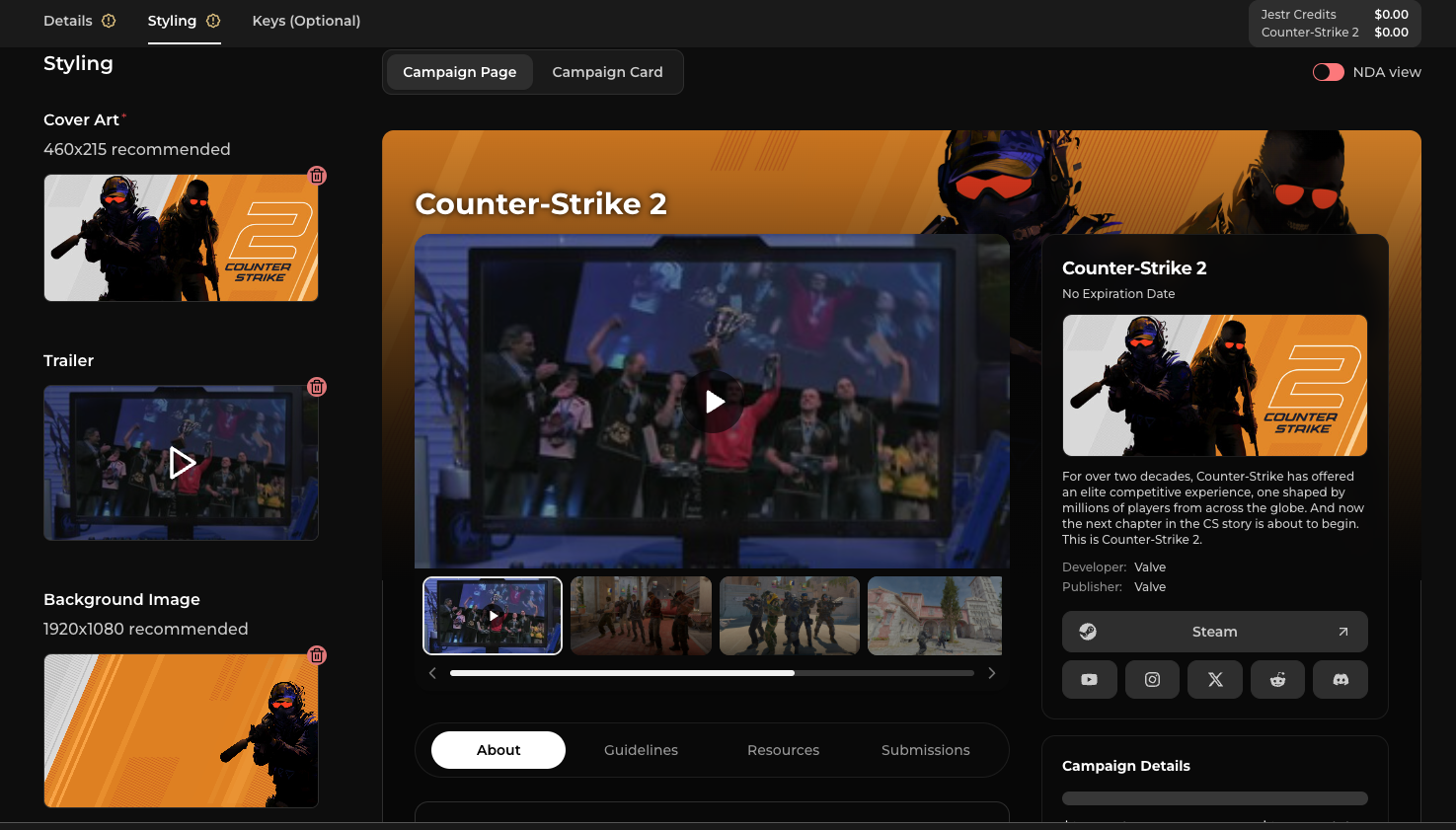
Campaigns can automatically use the styling and assets you've already configured for your game, giving you a complete starting point without having to upload everything again.
If your game was imported from Steam, these assets may already have been populated from your existing store listing.
You can keep them as-is, sync them again from Steam, or customize them specifically for this campaign.
Campaign assets
You can customize the following:
- Cover art — 460 × 215 recommended
- Trailer
- Background image — 1920 × 1080 recommended
- Game trailers & images — displayed as a carousel on your campaign page
For most campaigns, your existing game assets provide a good starting point.
However, campaign-specific styling can be useful when you're promoting a particular demo, playtest, update, event, launch, or other beat and have newer or more relevant assets you'd like creators to see.
Changes made here apply to the campaign's presentation, allowing you to customize an individual campaign without needing to change your game's default assets.
Preview your campaign page
The Campaign Page preview shows exactly what creators will see when they open your campaign to learn more about it.
Use this preview to check how your artwork, trailer, game information, campaign details, resources, and other information come together before submitting your campaign.
This is the same campaign page your creators will see, so it's a good opportunity to make sure everything is clear and presented the way you intended.
Preview your campaign card
The Campaign Card preview shows how your campaign will appear while creators are browsing available campaigns on Jestr.
This is often a creator's first interaction with your campaign, so make sure your cover art and other visible information represent your game well at a glance.
The preview shows the same card creators will see while browsing Jestr.

Preview the NDA experience
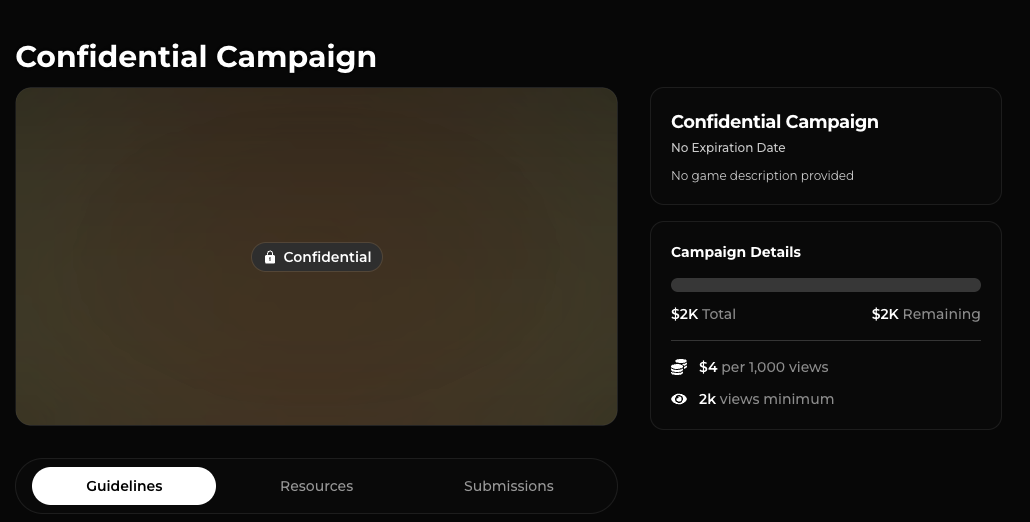
If you've enabled an NDA for your campaign, you can also toggle the preview to see how the campaign appears before a creator has signed the NDA.
This lets you verify which information is visible before signing and preview the experience from the creator's perspective.
For more information on how NDA-protected campaigns work and what creators can see, check out Campaign Visibility.

Next step: Submit your campaign for review
Once you're happy with your campaign setup and how everything appears to creators, you're ready to submit it to Jestr for review.
The Jestr team will review your campaign and leave feedback or recommendations where we think changes could improve the campaign before it goes live.
Continue to Campaign Review.